
Today ecommerce is the most popular way to increase sales, it’s hassle free for both the
Sellers and the Buyers, Easy to market the product with unlimited potential customers, but it
doesn’t mean you can have all the customers you wanted because in every business there’s always
competitors, and the one of the best way to compete is to give the customer easy and convenient
online shopping.
Some online sellers didn’t know that one main reason of losing customer is when the customer
cannot find what they want or too much surfing just to find one product that they really
wanted.
To help you to avoid losing customer we develop plugin for an easy and effective way of selling
“Single page product bundle”, no need for depth knowledge in woocommerce to setup your bundle,
just a simple shortcodes and done.
Single page product bundle is consist of three type of shortcodes
1.wptf-product-single
2.wptf-product-bundle
3.wptf-bundle-checkout
[wptf-product-single] – Accepts one parameter “addproduct” which will serve as the main product
of your package, “addproduct” parameter only accepts product ID.
Example: [wptf-product-single addproduct=’123456′]
[wptf-product-bundle] – Accept three parameter “category”, “addproduct”, and “displayproduct”
these shortcode serves as secondary product offer in a product bundle, It can be used in a page
as many as the user want to display in a single page. “category” parameter – can accept only
category ID, these a a key to display only what category to display in a group of product.
“addproduct” (optional)- this accept product ID, this parameter serve as the default product
that added in the product bundle, the user can remove this product or replace it with a product
in the category by selecting / clicking the “More Category Name” at the top right corner of
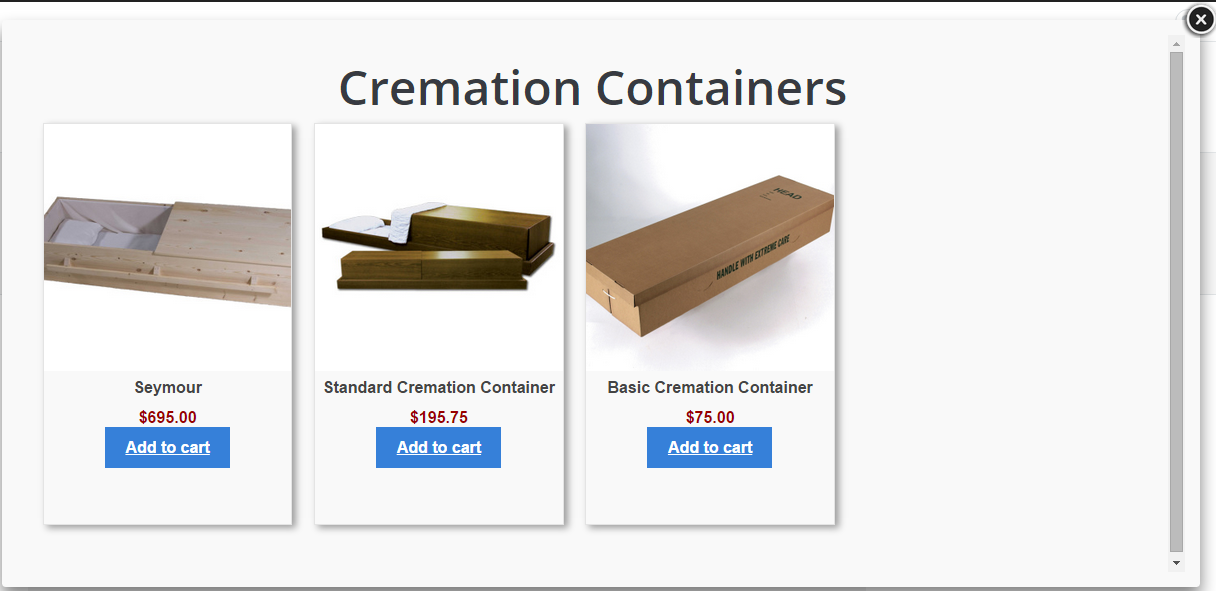
this shortcode. “displayproduct” parameter accept multiple product ID separated by comma, this
paramter will display the desire product to offer in the pop up when the “More Category Name”
was clicked. If this parameter is not used the shortcode pop up will display all the product
under the category.
Example : [wptf-product-bundle category=”62″ addproduct=”267967″
displayproduct=”267873,267863,267851,267859″ ]
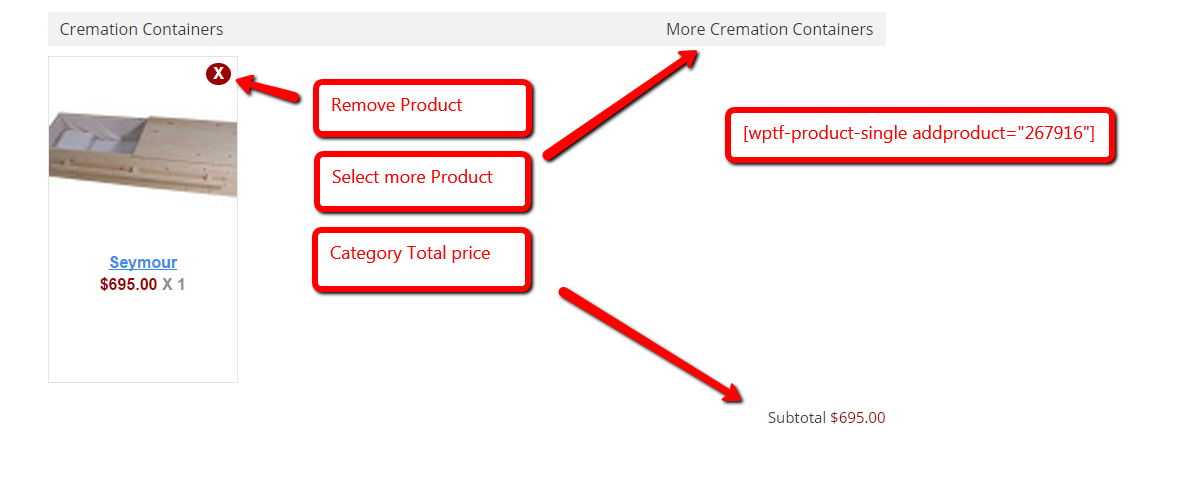
[wptf-bundle-checkout] – Accept only one parameter “label”, this shortcode is required in every
product bundle because it is where the total price of all product bundle is displayed and the
checkout button. “Label” parameter accepts a string value which will be a label for the button,
the default value is “Proceed to checkout”.
Example: [wptf-bundle-checkout label=”Checkout”]
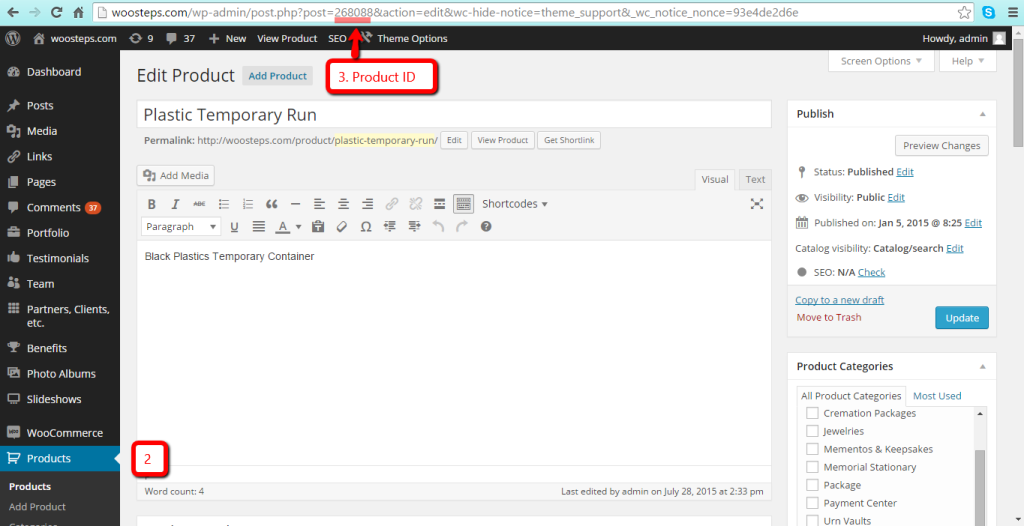
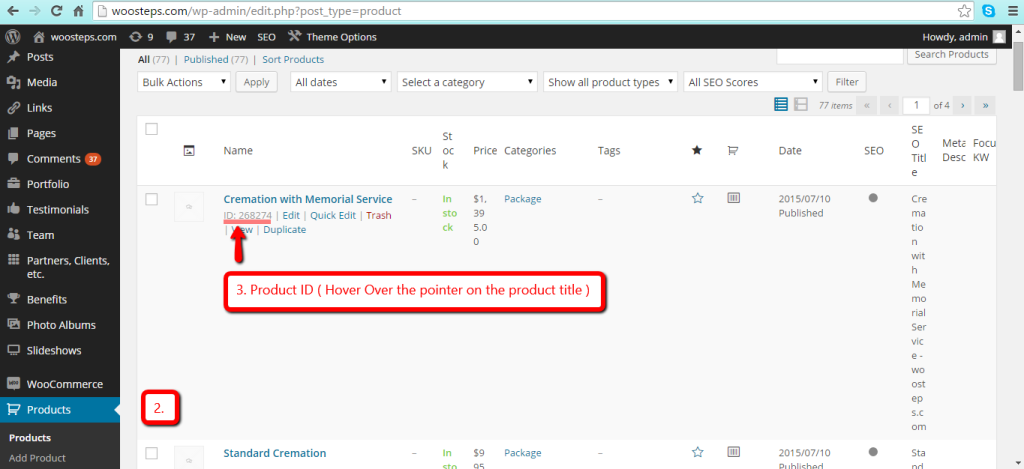
How to get Product ID
Go to Admin->Products->Select Product
–
-Go to Admin->Products->Hover Over the Product
 i
i
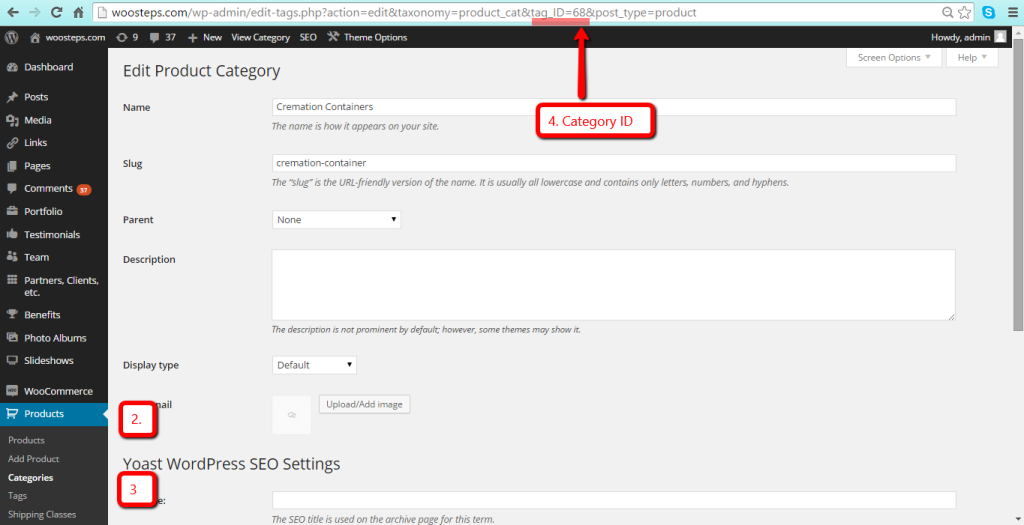
*How to get product category ID
Go to Admin->Products->Products->Categories->Select Category
*How to install the plugin
-Using your WordPress dashboard
1.Visit ‘Plugins > Add New’
2.Click Choose file and select the plugin zip file
3.Click install.
4.Click activate.
-Using your FTP
1. Extact the plug in zip file
2. Go to the site wordpress folder
3. Open wp_content->plugins and upload the plugin file folder
4. Go to the admin->plugins and activate the plugin.
Sample Demo Product bundle Set up.
[wptf-product-single addproduct=”267916″]
[wptf-product-bundle category=”68″ addproduct=”268060″]
[wptf-product-bundle category=”62″ addproduct=”267967″]
[wptf-product-bundle category=”65″ addproduct=”268088″]
[wptf-bundle-checkout label=”Checkout”]